

I translate WordPress websites every day. Translating a website isn’t difficult, but there are lots of details that need to be taken into account. And if you overlook just one, you have to start all over again.
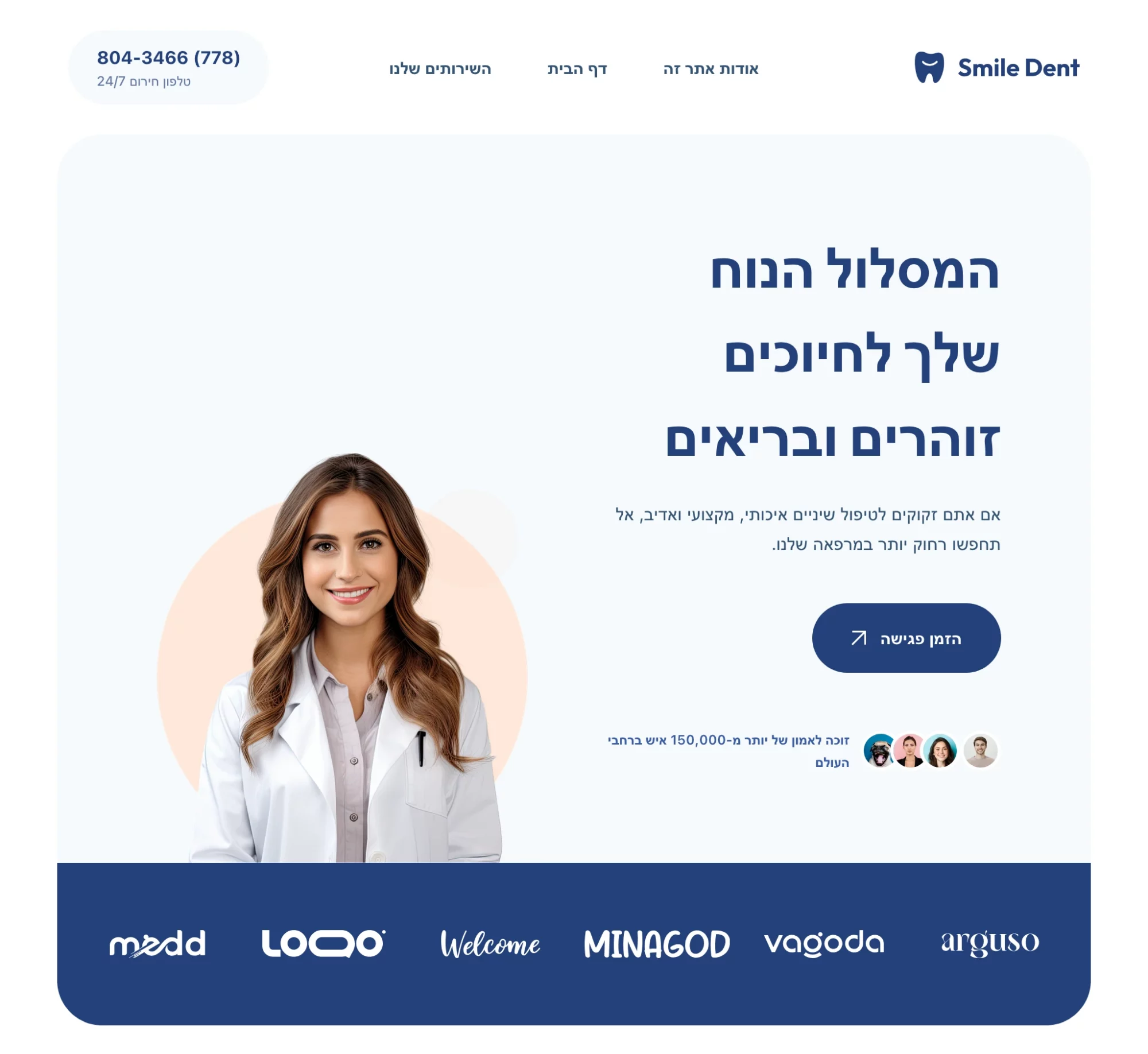
Here is an example of a translated home page. The original is in English, and the translation is in Hebrew. Note that it is not just the text that has been translated: the header, the menu, the CTA button and the entire layout have also been adapted to the new language.

In this article, I’ll walk you through the checklist step by step, as I work through it in my workflow: which plugin you can use, what you should check, and how to get the translation process started.
Key points at a glance
- Check the original text before translating it.
- Menus, widgets, header and footer templates, and plugin strings should be kept separate from posts and pages.
- SEO titles, meta descriptions, alt text and slugs must also be translated.
- Text within images remains in the original language until we have gone through each image individually.
Selecting the translation plugin
There are several plugins available for multilingual websites, including, for example, Polylang, WPML, TranslatePress, Weglot and MultilingualPress.
In my view, they are all fine. As well as managing languages, they often offer to translate content automatically. They differ in terms of where the strings are stored and how the translation is paid for.
- Polylang is a freemium plugin. It stores the strings in your database. The free version manages the languages, and upgrading to the Pro version gives you access to machine translation via DeepL. Alternatively, you can use third-party add-ons for AI-powered translation.
- WPML is a premium plugin. It also stores the strings in your database. Automatic translation is handled by WPML’s service, for which translation credits are charged. The WPML guide on Raidboxes walks you through the setup process.
- TranslatePress is also a freemium plugin. It stores the strings in your database after calling an external API. The AI translation is subject to an annual word limit, and once this has been used up, you’ll need to purchase another package.
- Weglot is another freemium plugin. It stores the dictionary on its own servers. The free plan includes 2,000 words and one language. The paid plans are based on the number of words and languages, and the credits are renewed every month.
- MultilingualPress is yet another premium plugin. It stores the strings in your database. Each language is a separate website within a multisite network.
Define the structure of the multilingual website
To begin with, select the URL pattern for the translated content:
- A subdirectory: example.com/de/leistungen/
- A subdomain: de.example.com/leistungen/
- A dedicated domain: example.de/leistungen/
A subdirectory keeps the domain together as a single property. A separate domain is appropriate when the markets are independent business areas.
Decisions regarding translation quality
For a marketing website, AI translation will most likely be sufficient. In the case of a website containing sensitive information, such as legal or health advice, a qualified person should check the translation before it is published.
Not every string needs to be translated, and this decision requires someone who is familiar with the subject matter. In a travel blog, for example, I leave the names of hotels and restaurants unchanged and translate the names of the destinations.
Set out the list of terms that are not to be translated right at the start and use it for every iteration. For AI translation, include this in the prompt: brand names, product names, people’s names, SKUs, code and abbreviations that readers are already familiar with in English (API, SEO, CMS).
Correct the original text before you translate it
Any error in the original content will be carried over into the translation in every language. Before you start translating, you should therefore check the following:
- Broken links
- A single H1 heading and headings that do not skip any levels
- The alt text for the images is complete
- No Lorem ipsum, no ‘To do’ lists, no sample prices or dummy contact email addresses
- No ‘long’ or ‘text-align’ properties stored in the blocks
- The links match those on the live website:
- A host: If the live website is https://www.example.com, a link to https://example.com will not be recognised if we rewrite the links
- Current slugs: Links to a post’s old slug are not recognised, and their URLs are not translated
Check which content types need to be translated
Not every type of content needs to be translated:
- Posts, pages and products, as well as all other types of content that visitors read – such as events, courses or portfolios – must be translated.
- Internal data records remain as they are.
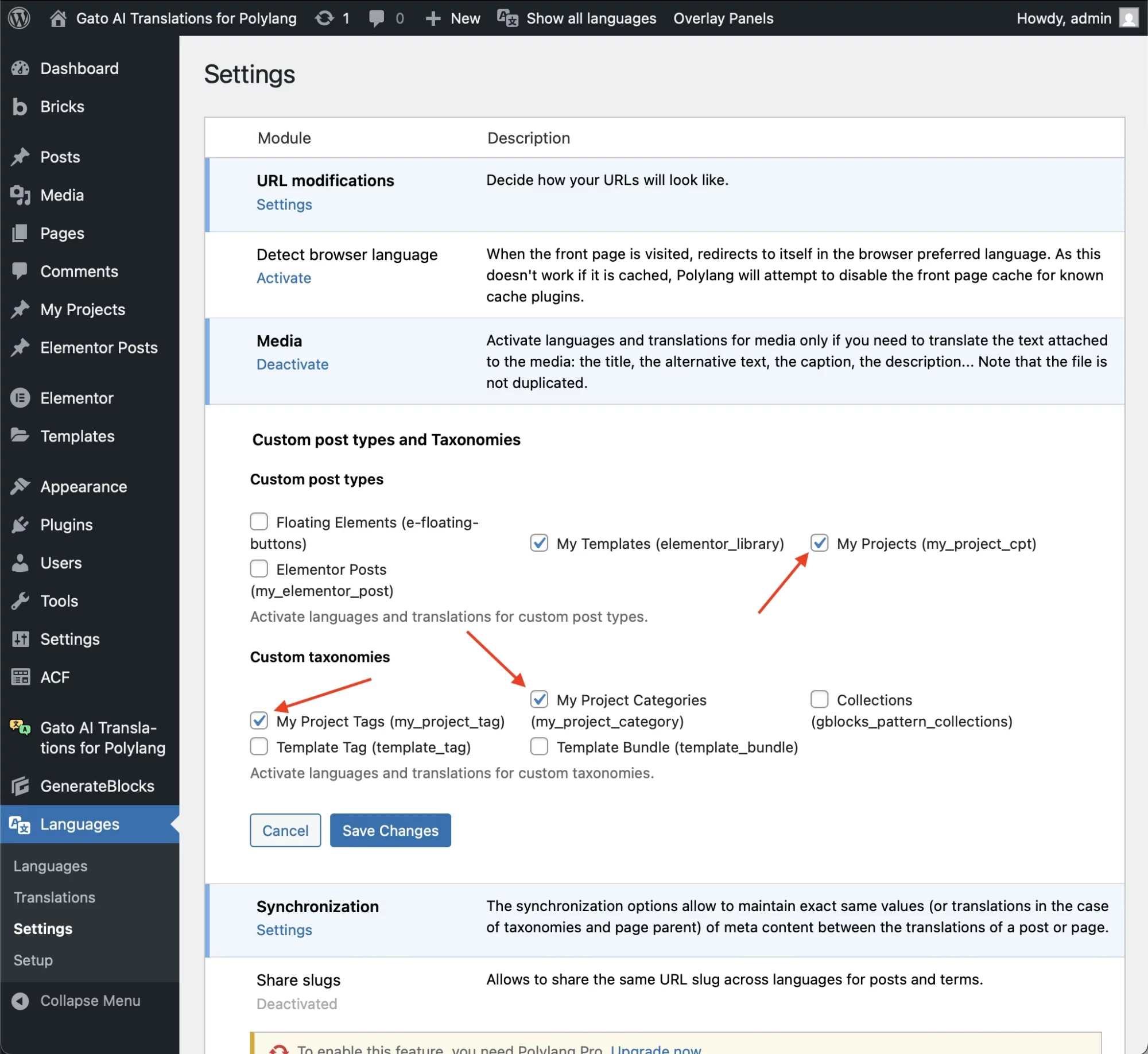
Enable translation for the selected types in your multilingual plugin and also enable their taxonomies.
Check all other content
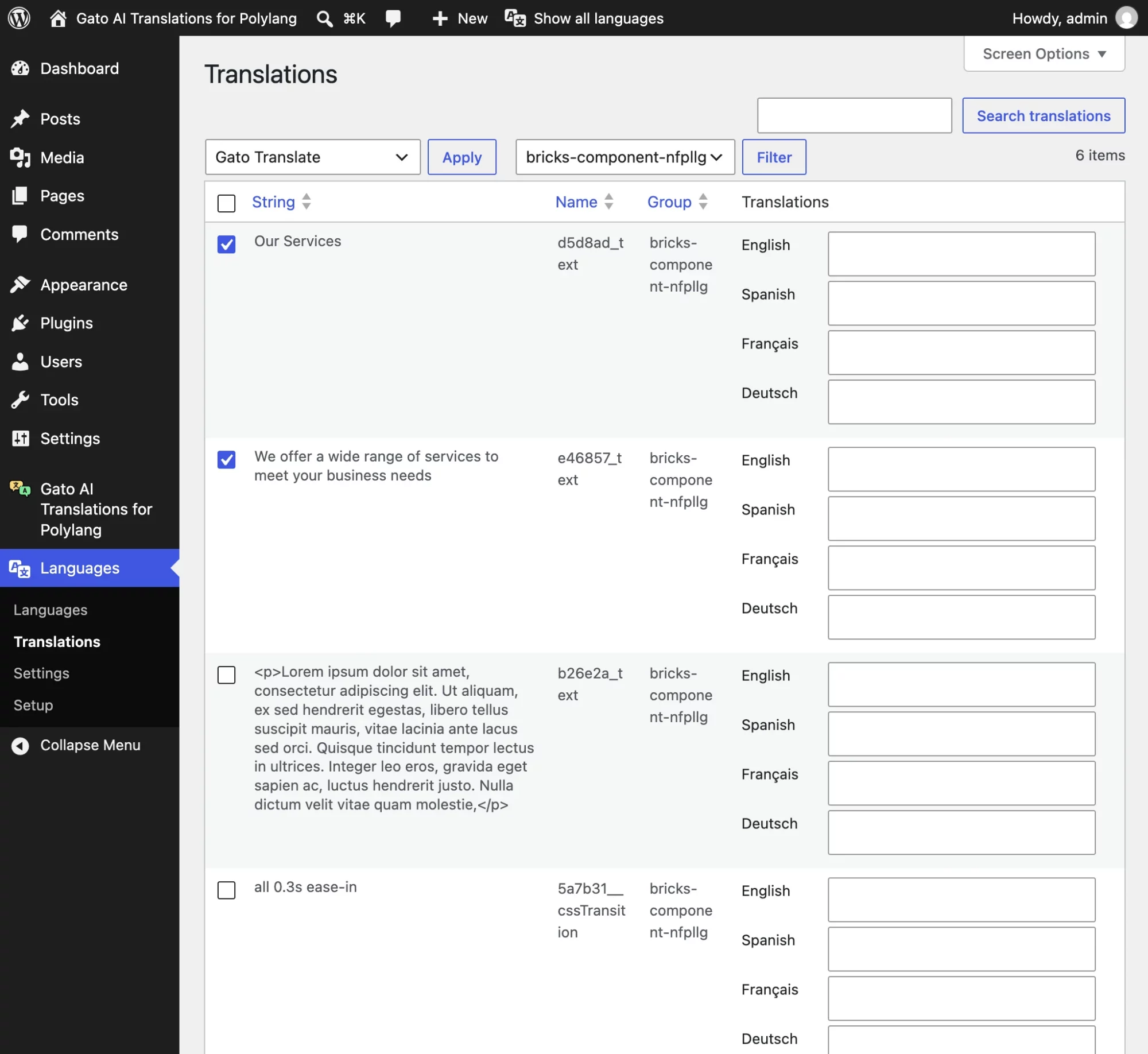
Simply translating the post is not enough, as much of the content comes from other sources, such as menus, widgets, plugin strings, and theme or page builder templates (for example, headers and footers). We need to translate those as well.

The theme contains predefined strings that are translated via a .po file supplied with the theme; we do not need to worry about these. In the theme code, these strings look like this:
echo __( 'Join Us', 'my-theme' );The theme may also contain dynamic, configurable strings, such as the copyright notice, and we do indeed need to translate these.
Check your photos
When you translate a media item, its metadata is translated (title, alt text, description and caption). However, this does not replace the image file itself. So if the image contains text, this text will also appear on the translated page.
Have a look at the media library in grid view, go through the images and see if any of them contain text.
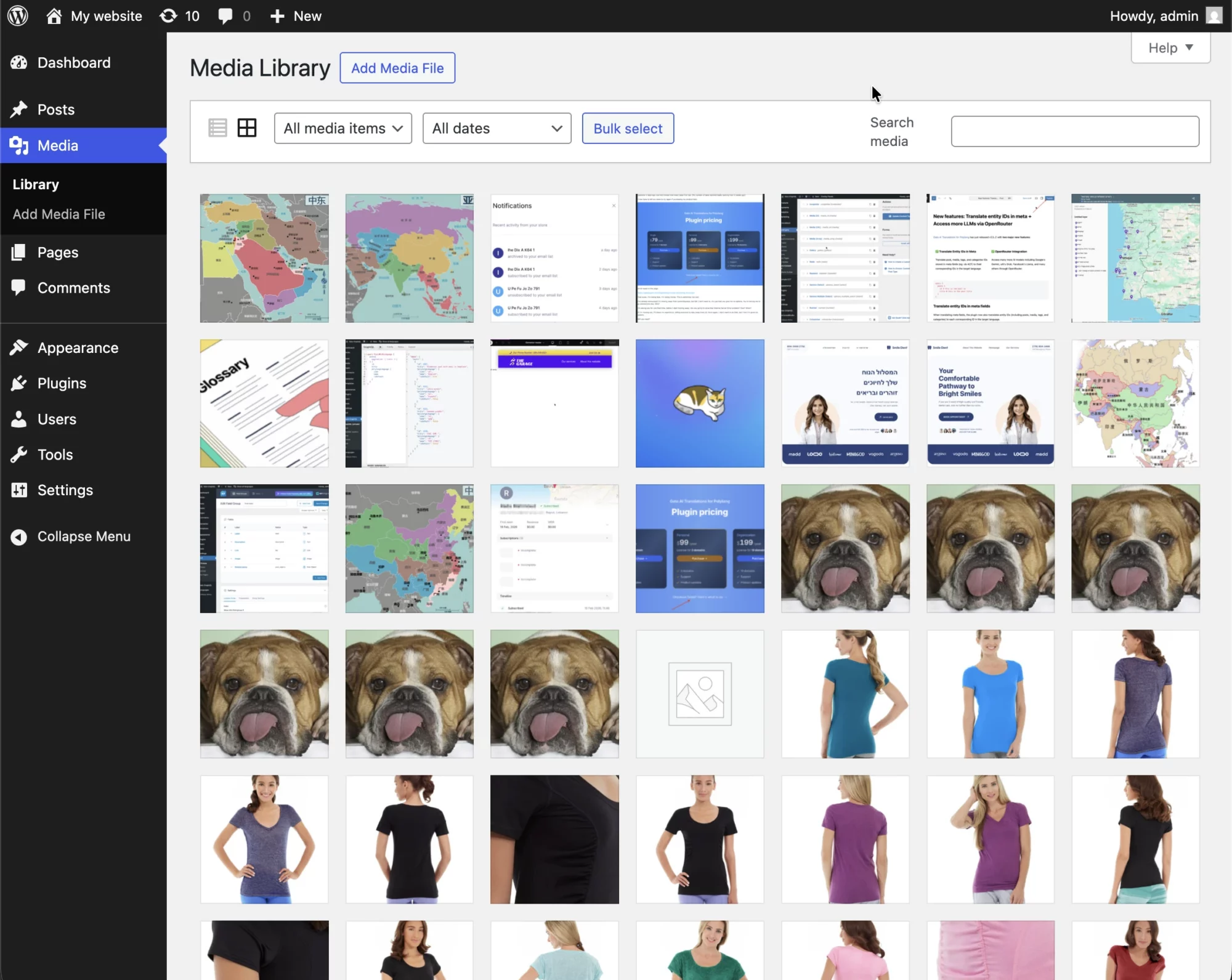
Take a look at these images with text and decide whether it is a problem if the same image is used in all languages. Duplicating the image file for each language quickly takes up storage space and should be avoided where possible.
If there is an image like this, you can replace it with a language-neutral version. To do this, use the ‘Enable Media Replace’ plugin, for example, so that the URL of the media file remains the same.
Check the SEO data for each post
Search engines index each language separately, so the SEO data (page title, description, social media title, etc.) must also be translated.
SEO data is usually stored as post meta by SEO plugins, such as Yoast, Rank Math, The SEO Framework and others. All translation plugins can handle this.
Before we translate a post, we need to check what the SEO plugin says about the title, description and keywords, and refine these details until they’re just right. After all, the translated pages can only perform as well as the page they were derived from.
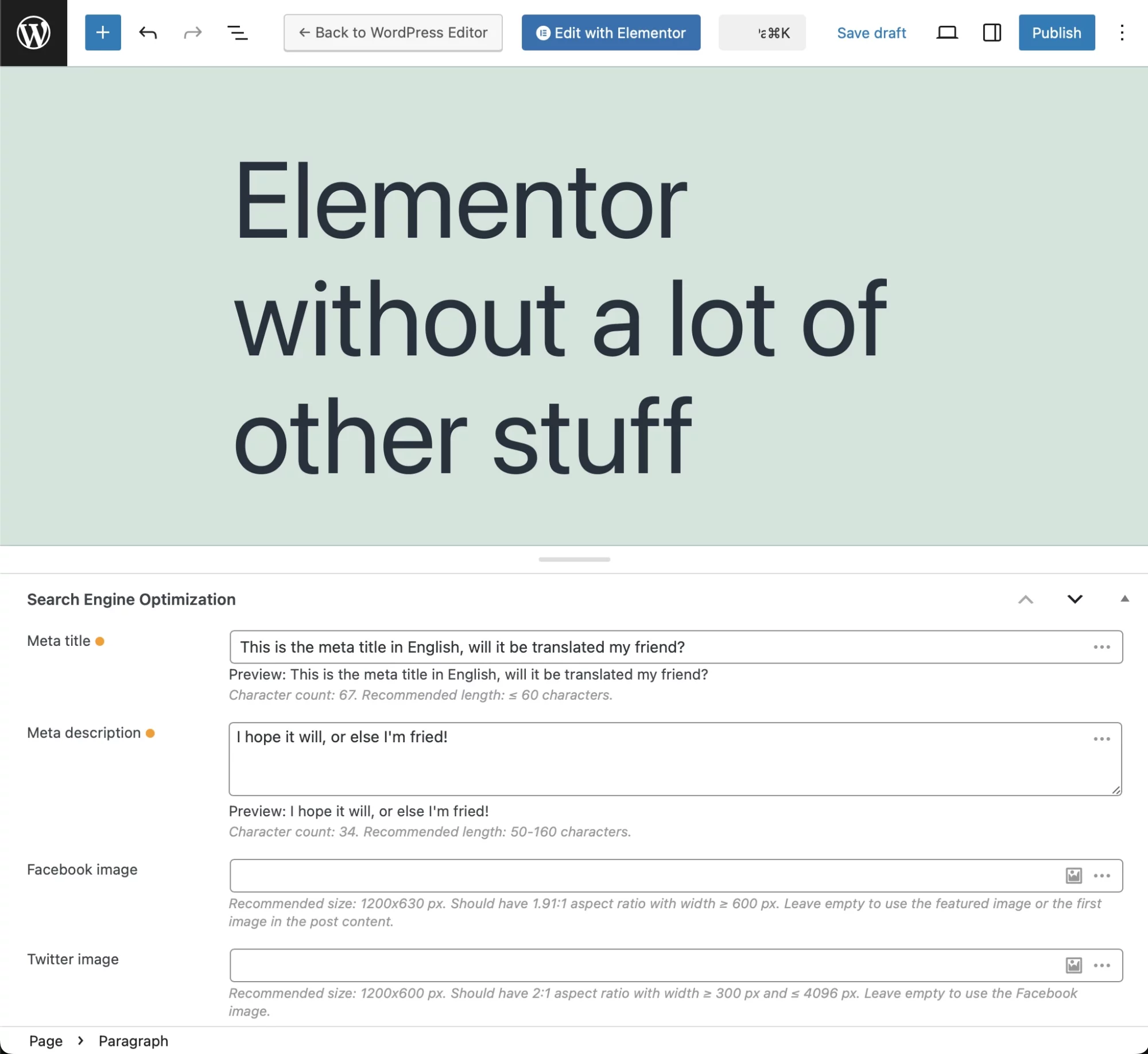
For example, the SEO plugin can visually indicate when a title or description is too short.
Translate custom meta fields
Custom fields – whether from Advanced Custom Fields, Meta Box or as post meta in a plugin – must also be translated.
Each field may need to be translated, copied or simply ignored. We therefore need to check each one individually and configure its behaviour in the translation plugin.
For example, a link field should be translated so that the translated page links to the correct URL in the target language.
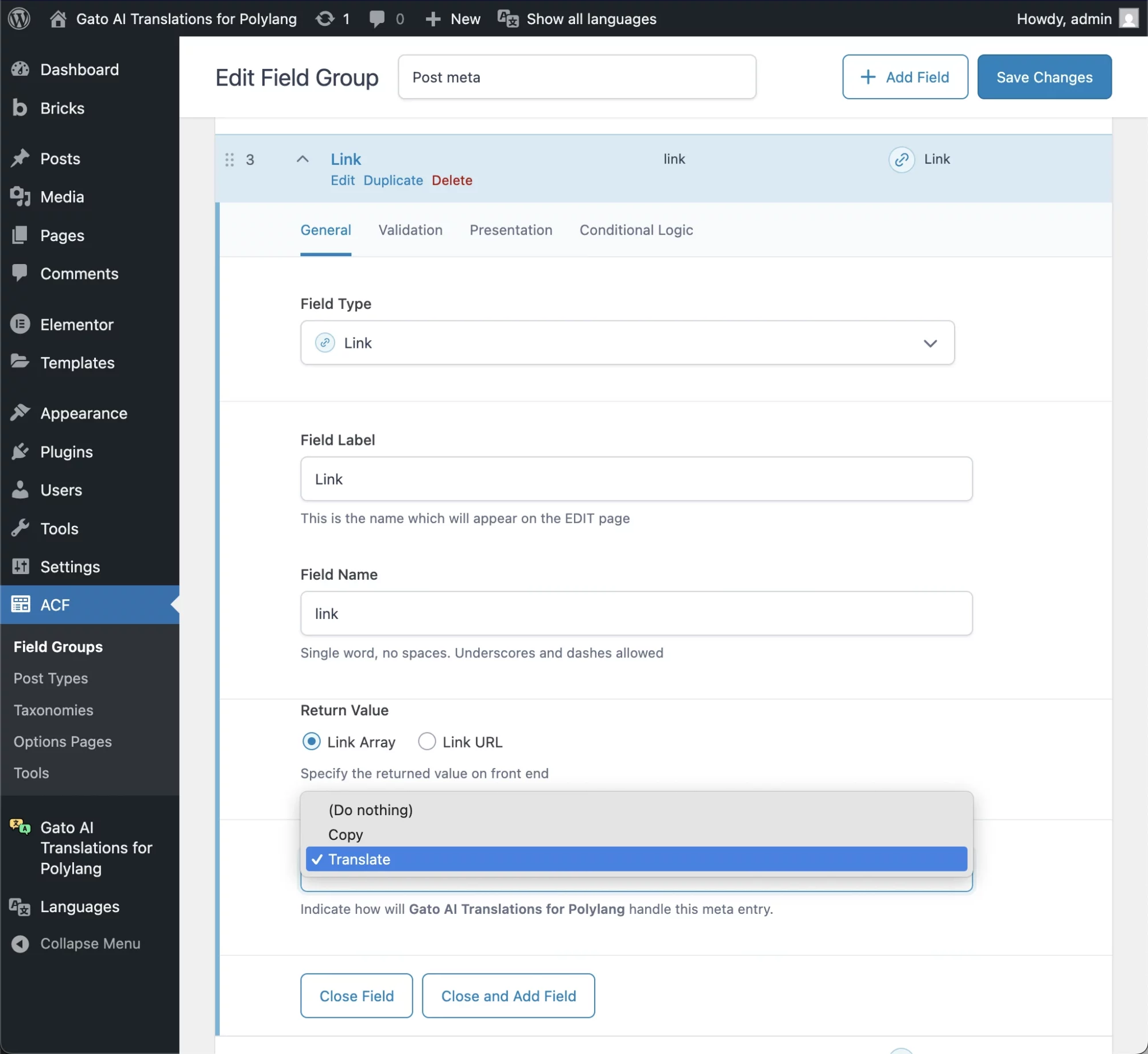
Carry out the translation
First, we’ll translate a small section, a few posts and a page, plus all the other sources that make up the page, including menus, widgets, plugin strings and theme or page builder templates.
Once you’ve translated this first short section and checked that it’s correct, you can translate the rest of the content.
Conclusion
This guide is designed to help you successfully translate your WordPress website. It explains which content needs to be translated, which plugins you can use, and what you should check before you start translating.
Sign up for the Raidboxes newsletter!
We’ll send you the latest WordPress insights, business tips, and more once a month.


Leave a Reply