

WordPress is the world’s most widely used CMS and is therefore the primary target of automated bot networks. Attacks these days are rarely targeted and carried out manually, but are instead carried out by scripts that constantly scan the web for known vulnerabilities.
According to the latest WordPress Security Report from Patchstack, 91 per cent of all newly discovered security vulnerabilities were caused by plugins and 9 per cent by themes. During the same period, only six vulnerabilities were recorded in the WordPress core, all of which were classified as ‘low priority’.
Where do WordPress security vulnerabilities arise?
Distribution of vulnerabilities by system component
Security plugins such as Wordfence or WP Cerber can help protect against attacks, but should not be the only measure taken. Long-term security requires hardening at server level and in the core configuration.
In this practical guide, you’ll learn what the technical causes of WordPress hacks are, how to patch vulnerabilities manually without additional plugins, and what you should do if your website has already been hacked.
Key takeaways
Here’s how to protect your website from attacks:
- Updates & vPatching: Keep WP-Core, PHP (8.2+) and extensions up to date. For complex page builders and critical plugin vulnerabilities, rely on automatic vPatching or server-side protection tools.
- Access & Roles: Delete the default ‘admin’ user, enforce two-factor authentication (2FA) and strictly limit user rights in accordance with the principle of least privilege.
- File system & uploads: Set the correct CHMOD permissions (not 777) and block the execution of PHP scripts in the /wp-content/uploads/ folder via .htaccess.
- Interfaces: Block the obsolete xmlrpc.php file and restrict access to sensitive REST API endpoints to prevent brute-force attacks and broken access control.
- Infrastructure: Opt for isolated container environments (rather than shared hosting) and use server-side firewalls, rather than overloading the database with resource-intensive security plugins.
- Backups: Use automated, isolated backups that are stored physically separately from the actual web space.
The 5-layer pyramid of WordPress security
Security is built from the bottom (infrastructure) up to the top (access)
How can I identify security vulnerabilities on my website?
Most hacks use one of the following three methods:
- Cross-Site Scripting (XSS): Malicious scripts (usually JavaScript) are injected via unprotected input fields and executed in the website visitor’s browser.
- SQL injection (SQLi): Malicious code is sent directly to the database in order to extract data or manipulate administrator privileges.
- Cross-Site Request Forgery (CSRF): A logged-in administrator is tricked into carrying out unwanted actions in the background (e.g. via a malicious link).
Gaps identified vs. gaps actually exploited
Not every security vulnerability is exploited straight away. There can be a significant discrepancy between the number of vulnerabilities discovered and those that are actually exploited:
- Most commonly found in code: Cross-Site Scripting (XSS) regularly accounts for around 50 per cent of all reported plugin vulnerabilities in databases, as a lack of escaping can be easily detected by automated code scans.
- The most common targets for hackers on live websites: According to the Patchstack Security Report, the attacks blocked by firewalls are dominated by ‘Broken Access Control’ (57 per cent) (inadequate verification of user rights) and ‘Privilege Escalation’ (20 per cent) (unauthorised extension of one’s own user rights). In both cases, attackers can gain access without any interaction from the website operator, which makes them particularly dangerous.
What is a zero-day vulnerability (zero-day exploit)?
A zero-day vulnerability is defined as a security flaw that has been discovered and is already being actively exploited before the developer becomes aware of it or has had a chance to release a patch. Once the vulnerability becomes known, the developer has exactly ‘zero days’ to respond. Conventional signature-based scanners are of no use against such vulnerabilities – protection is primarily provided here by server-side web application firewalls (WAFs), which block suspicious request behaviour.
The first steps towards greater security
Before you make any changes to configuration files, you should audit your system:
- Check dashboards and update notifications: WordPress displays outdated plugins in the admin panel. A glance at the changelogs will reveal whether an update contains important security fixes.
- Comparing security records: Databases such as the WPScan Vulnerability Database, WPVulnerability API or Patchstack allow you to search installed plugins specifically for known vulnerabilities.
- Use automated scanners: Tools such as Sucuri SiteCheck (sitecheck.sucuri.net) or Google Safe Browsing Status scan the site from the outside for malware and outdated components.
- Filter out orphaned plugins: If a plugin has not been updated for over 12 months or has been removed from the official directory, it should be replaced immediately.
The 5 most common security vulnerabilities & how to fix them
1. Outdated and orphaned plugins, themes and core files
Accounting for 90 per cent of all security vulnerabilities, outdated plugin and theme files pose by far the greatest risk. According to Patchstack, over 50 per cent of all plugin security vulnerabilities do not require any form of authentication. Attackers do not even need to log in to execute the malicious code. Alongside delayed updates, orphaned plugins (which have not been maintained for more than 12 months) pose the main risk.
At Raidboxes, we’ve had the same experience. Most support enquiries regarding malware are linked to outdated plugins that were installed at some point and then forgotten, or which were deactivated but not deleted. Page builders such as Elementor or Divi, in particular, crop up time and again in our support tickets. Their complex code and the use of various interfaces, combined with their widespread use, make them a popular point of entry for hackers. The sheer number of third-party add-ons further exacerbates the problem.
Security vulnerabilities in plugins do not only affect the many free plugins available for WordPress. According to Patchstack, 29 per cent of security vulnerabilities were found in paid premium or freemium versions. Over half (59 per cent) of these are classified as very dangerous.
How can I protect myself from this?
- Automate the update process: Enable automatic updates for minor releases of the core and plugins. Test major updates in a staging environment first.
- Delete unnecessary items: Don’t just deactivate unused plugins – delete them completely from the server.
- Using vPatching: Utilise tools such as Patchstack to virtually patch vulnerabilities before an official developer update is available.
- Disable the backend editor: Under Design > Theme File Editor, files can be edited directly in the dashboard. If an attacker manages to log in, they often use this editor to create backdoors. Add the following code to your wp-config.php (before the line /* That’s all, stop editing! Happy publishing. */):
define( 'DISALLOW_FILE_EDIT', true );- Hiding the WordPress version number: By default, WordPress displays its version number in the source code. Bots specifically search for outdated version numbers. Add this code to the functions.php file of your (child) theme:
remove_action('wp_head', 'wp_generator');2. Weak login credentials & lack of 2FA
Human error is the second major risk factor. The use of the standard username ‘admin’, easily guessable passwords and the lack of two-factor authentication (2FA) make it far easier for accounts to be compromised. Another risk is abandoned administrator accounts belonging to former service providers or employees.
How can I protect myself from this?
- Replace the default admin and User ID 1: If your admin username is still ‘admin’, create a new administrator with a custom name, log in using that account, and delete the old ‘admin’ account. When deleting the account, assign any existing posts to the new account.
- Enforce two-factor authentication (2FA): If your hosting provider does not offer server-side 2FA, use a lightweight plugin (e.g. Two Factor or WP 2FA) to set up mandatory 2FA for all accounts with the ‘Editor’ role or higher.
- The principle of least privilege (separation of roles): Grant administrator rights only to those who need to make technical changes. Editors, SEO managers and guest authors are strictly granted only the rights they require for their respective roles.
- Use a password manager: Use complex passwords of at least 16 characters.
It may sound simple, but at Raidboxes we’ve found that weak passwords, a lack of two-factor authentication and poor user management – alongside outdated plugins – are by far the most common causes of malware and hacker attacks. At the same time, however, it is also one of the security vulnerabilities that is easiest to fix – without needing much technical knowledge.
3. Exposed interfaces & brute-force attacks
Automated scripts test thousands of login combinations per minute. This is done via the standard login page (wp-login.php) or the deprecated xmlrpc.php interface. If left unprotected, XML-RPC serves as the primary target for botnets carrying out brute-force and DDoS attacks.
How can I protect myself from this?
- Blocking the xmlrpc.php interface: Unless you are using specific services that absolutely rely on XML-RPC, this file should be blocked. At Raidboxes, we have decided to block xmlrpc.php by default for external access for security reasons. Customers can re-enable it via the dashboard on a case-by-case basis if a particular integration absolutely requires it. To block xmlrpc.php, add this code to your .htaccess file:
# Block WordPress xmlrpc.php requests
<Files xmlrpc.php>
Order Deny,Allow
Deny from all
</Files>- Limit registrations: Restrict the number of failed login attempts per IP address (e.g. using Limit Login Attempts Reloaded or a server-side firewall).
- Changing the database prefix: Automated SQL injection attacks often target the default table names (wp_xxx). Change the prefix of your database tables via your hosting control panel or phpMyAdmin. This requires direct access to the database and should not be carried out by those without technical expertise.
- Renew WP salts: The security keys (salts) in the wp-config.php file encrypt the passwords in the cookies. If these keys are replaced, all users currently logged in will be logged out immediately. New salts can be generated using the official WordPress Secret Key Generator and copied into the wp-config.php file.
4. Insecure file permissions & unprotected uploads
File permissions (CHMOD) define, at server level, who is permitted to read, write or execute files. Access rights that are too broad allow external scripts to overwrite system files directly. Furthermore, attackers frequently upload malicious PHP scripts disguised as images to the ‘uploads’ folder.
If attackers manage to upload a file via a plugin vulnerability, they often install so-called web shells (such as wp2shell). These PHP scripts act as a permanent backdoor, allowing hackers to execute commands directly on the server, read data from databases or download further malicious code. Blocking PHP files in the ‘uploads’ directory immediately renders such scripts ineffective.
How can I protect myself from this?
- Block directory browsing: Prevent visitors from viewing the entire folder structure. Add this line at the bottom of your .htaccess file in the root directory:
Options -Indexes- Enforce HTTPS/SSL: Integrate an SSL certificate and set up a server-side 301 redirect from HTTP to HTTPS.
- Stop PHP execution in the uploads folder: Create a new .htaccess file with the following content and upload it via (S)FTP exclusively to the /wp-content/uploads/ folder:
<Files *.php>
deny from all
</Files>- Set file permissions (CHMOD) correctly: Incorrect file permissions make it easy for attackers to overwrite system files. CHMOD values are represented by a combination of three digits (e.g. 755). The digits represent the owner, the user group and all other users on the internet:
- 0: No rights
- 1: Permitted to carry out
- 2: Permitted to write
- 4: Permitted to read
- 5: Permitted to read and execute (4 + 1)
- 6: Can read and write (4 + 2)
- 7: Permitted to read, write and execute (4 + 2 + 1 = full rights)
- Check the CHMOD permissions using your FTP programme. The following standard recommendations apply to WordPress:
- Folders (directories): 755
- Files: 644
- wp-config.php: 400 or 440 (provides maximum protection for sensitive login details against read access by other server users).
- A folder or file mustnever have the permission level 777 (full access for everyone).
CHMOD Permissions Matrix for WordPress
Overview of secure and unsafe file permissions at server level
| File / Directory | Secure (Green) | Conditionally OK | Critical (Red) | Note |
|---|---|---|---|---|
| /wp-content/, /wp-admin/ etc. | 755 | 750 | 777 / 775 | Default for all directories. |
| /wp-content/uploads/ | 755 | 750 | 777 | Additionally, prevent PHP execution via .htaccess. |
| Standard files (.php, .css, .js) | 644 | 640 | 666 / 777 | Default for standard WordPress files. |
| wp-config.php | 400 / 440 | 644 | 666 / 777 | Maximum read restriction for other server users. |
| .htaccess / nginx.conf | 440 / 644 | 640 | 666 / 777 | Protects central server configuration rules. |
5. Outdated PHP versions & insecure shared hosting
The server itself represents a fundamental vulnerability. Outdated PHP versions (end-of-life) no longer receive security patches. Furthermore, on traditional shared hosting servers, hundreds of customers share the same system environment. If there is no container isolation, malware can spread from hacked neighbouring websites (the ‘bad neighbour’ effect).
How can I protect myself from this?
- Carrying out PHP upgrades: Only use PHP versions officially supported by the PHP project and carry out regular version upgrades via your hosting provider’s dashboard.
- Choose an isolated container infrastructure: Opt for managed WordPress hosting with dedicated, isolated server containers (e.g. Docker/LXC environments) rather than traditional shared hosting.
- Use a server-side WAF: Choose a hosting provider with integrated exploit protection at the Nginx/Apache level, which filters out attack patterns before they reach WordPress.
Raidboxes Comment: A shared hosting provider once allowed malware to be installed on one of my older WordPress sites; the malware spread automatically and placed encrypted .php files in common folders. At the time, this completely crippled the website (deleting WordPress-related folders), and it took days to remove all the infected files. – Sahin Habermann, Web Dev, Raidboxes
Early warning systems, security plugins & server-side tools
A sustainable security strategy combines proactive monitoring, application hardening and server-side protection mechanisms.
- WPScan / WPVulnerability API / Patchstack: These services maintain global databases for the continuous monitoring of installed components. You will be notified immediately via automated email alerts as soon as a vulnerability is detected in any of the plugin or theme versions you are using.
- Sucuri SiteCheck (sitecheck.sucuri.net): A free external scanner that checks a URL from the outside for known malicious code, outdated server components, web server misconfigurations and entries on web blacklists.
- Google Safe Browsing Status: Checks a domain’s official security status from the perspective of Google’s crawlers, to prevent imminent de-indexing at an early stage.
Can security add-ons help?
The practice of installing comprehensive security suites immediately after setting up a WordPress instance is widespread, but it entails certain disadvantages at the application level that are inherent to the software:
- Performance loss: As plugins process requests in real time via the PHP engine, every call consumes server resources and increases the load time (Time-To-First-Byte / TTFB).
- Database growth: Extensive logging of failed login attempts, 404 errors and IP scans causes the MySQL database to become significantly bloated over time.
- Security vulnerabilities of their own: Owing to their immense range of functions and deep system access, complex security plug-ins have, in the past, themselves been found to contain critical vulnerabilities on several occasions.
Security solutions in detail
Security tools can operate at the application level (plugins) and at the server level (hosting infrastructure).
1. Wordfence Security (Classic Plugin)
Wordfence combines a PHP-level endpoint firewall with a local signature scanner.
- Extended Protection Mode: In this configuration, Wordfence uses the PHP directive `auto_prepend_file` in the `.user.ini` or `php.ini` file. This causes the Wordfence script to run before the `wp-config.php` file and the rest of the WordPress core are loaded. This intercepts requests earlier than standard plugins, but consumes the server’s PHP memory with every single request.
- Malware scanner (signature & hash matching): Compares the MD5 hash of all core and repository files against the official WordPress.org database and scans the source code using regular expressions (Regex) for malicious patterns such as eval(base64_decode(…)).
- Disadvantages: The Live Traffic feature logs every single HTTP request directly into the MySQL database (wp_wfls_2fa_secrets, wp_wfhits, etc.). For sites with 50,000 or more page views per month, this can cause the database to become extremely bloated and lock up. In the free version, new firewall rules and malware signatures are only applied after a 30-day delay.
2. Kadence Security, formerly Solid Security / SolidWP / iThemes Security (Classic plugin)
At its core, Kadence Security does not function as a deep packet inspection firewall, but rather as a hardening and access manager.
- System and Configuration Hardening: Rather than analysing every request in depth like a WAF, Kadence Security writes fixed rules into the .htaccess, nginx.conf and wp-config.php files (e.g. blocking directory browsing, restricting write permissions, setting headers).
- Network Brute Force Protection: Reports failed login attempts to a central cloud network. If a bot attempts to log in to another website on the same network a few minutes later, the IP address is immediately blocked there.
- Passkey & Modern Auth: Provides integrations for passkeys, enforced two-factor authentication (2FA), password complexity and session lockouts.
- Disadvantages: It cannot detect malicious code already hidden deep within the source code or zero-day exploits whilst the system is running, as no active file comparison takes place. With specialised managed WordPress hosting, most server-level hardening rules are already covered, which makes the plugin largely redundant.
3. WP Cerber Security (specialised plugin)
WP Cerber is a specialised bot defence and heuristic engine with a strong focus on behavioural analysis.
- Cerber Anti-Spam & Bot Detection: Analyses the behaviour of form submissions and HTTP headers. Detection patterns are based on form-filling speeds, invisible fields (honeypots) and unusual request structures.
- Granular API blocking: Allows selective control of the WordPress REST API (e.g. specifically blocking the /wp/v2/users endpoint, which bots use to retrieve usernames).
- Protection of wp-login.php: Enables the login URL to be completely redirected and dynamically blocks IP subnets (CIDR blocks) following failed login attempts.
- Disadvantages: Not listed in the official WordPress.org repository due to disputes over guidelines. Updates must be obtained externally, which complicates automated deployment pipelines.
4. Patchstack (Cloud API + lightweight agent plugin)
Patchstack utilises the principle of virtual patching (vPatching) via an external cloud infrastructure.
- How vPatching works: If a security vulnerability is detected in a plugin, Patchstack sends a microscopic firewall rule to the instance in real time. This rule filters out precisely the malicious parameter that would exploit the specific vulnerability – even before the developer releases an official update.
- Minimal resource footprint: Does not perform local file scans or generate database traffic logs. The plugin acts solely as a lightweight agent to retrieve vPatch rules from the Patchstack API.
- Centralised management: Provides an external SaaS dashboard for cross-platform monitoring of plugin versions and vulnerabilities across hundreds of instances.
- Disadvantages: Provides targeted protection against documented plugin vulnerabilities, but is not a general-purpose malware cleaner for manually compromised login credentials.
Raidboxes’ recommendation: Security features such as IP blocking, malware quarantine and DDoS protection belong, architecturally speaking, at the server infrastructure level. If server-side tools or global WAFs secure the file layers, a lightweight two-factor authentication (2FA) plugin at the application layer is entirely sufficient to guarantee maximum security without compromising performance.
Emergency plan: I’ve been hacked – what now?
If malicious code has been introduced, a structured approach is crucial. In a crisis situation, it is helpful to clearly define responsibilities:
An overview of safety responsibilities
Clearly defined responsibilities in the event of an emergency and for preventative measures
Isolated server environments, server-side DDoS protection, PHP updates, provision of automatic server snapshots and backups.
Applying updates, emergency clean-up following hacks, password resets, configuration of 2FA, vPatching & rights management.
Secure passwords, do not share login details, handle forms, user accounts and media uploads with care.
In the event of an emergency, the following steps should be carried out in exactly this order:
- Quarantine
- Password reset
- Clean-up / Backup
- Research into causes
1. Quarantine & Maintenance Mode
If you suspect that malicious code is present, activate maintenance mode immediately or block external visitors from accessing the website via .htaccess. This protects visitors and prevents search engines from crawling the infected page.
If a hack is not contained in time, the consequences quickly extend far beyond the technical problem:
- GDPR reporting obligation (72-hour deadline): As soon as there is a risk to user data (e.g. data leaked from contact forms or online shops), the GDPR in Germany requires a report to be submitted to the data protection authority within 72 hours. You can find forms for reporting a data breach on the websites of the relevant state authorities, e.g. baden-wuerttemberg.datenschutz.de, ldi-fms.nrw.de, datenschutz.hessen.de or datenschutz.rlp.de. If not all details are known within the 72-hour period (e.g. the exact number of data records affected), submit the document as a preliminary initial report. In accordance with Article 33(4) of the GDPR, further information may be provided in stages and without undue delay.
- Loss of ranking and reputation: If Google flags a page with the message ‘This website may have been hacked’ or temporarily removes it from the index, organic traffic plummets immediately. It can take months to recover to the previous level.
- Email blacklisting: If the webspace is misused to send spam emails, the server’s IP address will quickly end up on global blacklists (such as Spamhaus). As a result, even legitimate company emails will no longer reach their recipients.
2. Reset the password and salt
After a break-in, intruders often leave backdoors behind to allow them access at a later date.
- Change the passwords of all WordPress users with administrator roles.
- Change the passwords for FTP, SSH and the MySQL database with your hosting provider.
- Replace the security keys (salts) in wp-config.php to immediately terminate all active sessions.
3. Clean-up or backup import
- Option A (Import via backup): The quickest and safest way. Restore the last guaranteed, clean backup (from before the hack took place). Immediately afterwards, change all passwords and close the security gap through which the attack occurred.
- Option B (Manual clean-up): If there is no clean backup, simply deleting suspicious files is usually not enough.
- Download fresh copies of WordPress Core, themes and plugins from official sources.
- Replace the /wp-admin/ and /wp-includes/ folders, as well as all core files in the root directory, with the original, unmodified files.
- Completely delete any existing plugins and themes, and reinstall them from official sources.
- Manually scan the /wp-content/uploads/ folder for .php files and delete them (executable PHP files have no place in this folder).
Manually ‘cleaning’ an instance that has already been compromised without a clean backup often leads to re-infection after a few days, because hidden backdoors have been overlooked. A clean restore at server level is usually the more sustainable solution.
4. Root cause analysis & Google Search Console
Find out how the attacker managed to gain access to the system. To do this, check the server log files (access logs) from the time of the attack for any suspicious POST requests or calls to unusual .php files. If this step is omitted, the website will be reinfected via the same vulnerability within a short space of time.
If Google has already flagged the page, once you have fully rectified the issue, submit a request for a re-review via Google Search Console under ‘Security Issues’.
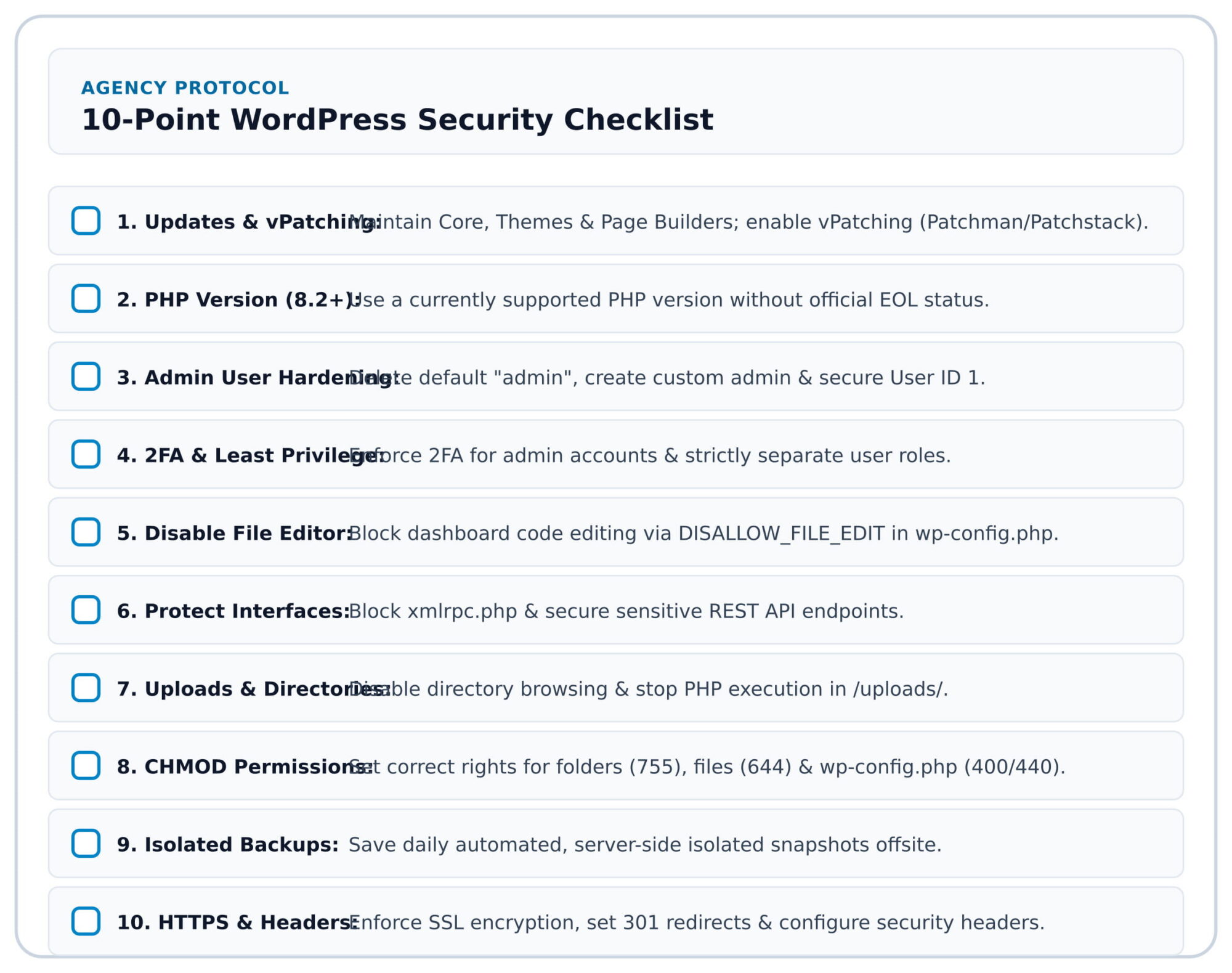
WordPress Security Checklist
Frequently Asked Questions (FAQ) on WordPress security
How can I tell if my WordPress website has been hacked?
A successful attack usually manifests itself in sudden, unusual behaviour on the website. Visitors are often redirected to third-party websites without their consent, or Google displays warning messages such as ‘This website may have been hacked’ in its search results. Unknown users with administrator rights sometimes appear in the dashboard. In addition, a sudden spike in server load, extremely slow loading times or a sudden drop in organic traffic may indicate that malicious processes are running in the background or that Google has already de-indexed the affected pages as a precautionary measure.
Is WordPress generally less secure than other CMSs because it is open source?
No, the assumption that open-source code poses a security risk is a widespread myth. Proprietary systems often rely on what is known as ‘security through obscurity’ – hiding code in the hope that no one will find any vulnerabilities. With open-source software such as WordPress, a global community of thousands of developers and security experts continuously reviews the code. As a result, vulnerabilities are often detected and patched more quickly than in closed systems. The primary risk lies not in the source code of WordPress itself, but in its enormous market penetration and the inadequate maintenance of third-party plugins by individual website operators.
Are automatic updates for plugins and themes dangerous?
In the case of pure security and maintenance updates (minor releases), the benefits of automatic updates far outweigh the risk of potential display errors. However, with major version jumps or complex extensions (such as page builders), there is a risk that layouts may break. In such cases, testing in a staging environment is recommended. To bridge the gap until a safe update can be carried out, virtual patches (vPatching via Patchstack) provide protection: they immediately close the vulnerability in the background without the need to modify the plugin’s codebase.
Is a free security plugin enough to provide basic protection?
Lean, free plugins are well suited to specific tasks at application level, such as enforcing two-factor authentication (2FA). However, heavy all-in-one security suites often slow down loading times (TTFB) and bloat the database. A genuine security foundation requires server-side protection: server-level tools, an isolated hosting infrastructure and properly configured file permissions protect the system far more effectively than WordPress plugins alone – and with 0% loss of performance.
How much does it cost to have a hacked WordPress site professionally cleaned up?
Anyone who has an infected website cleaned up manually by a specialist service provider or agency can usually expect to pay between 300 and 1,500 euros, depending on the effort involved and the extent of the malicious code. A functioning, regularly updated backup therefore remains by far the cheapest and most effective form of protection.


Leave a Reply