

WordPress powers 43.5 percent of all websites on the internet today. So it’s no surprise that our support team receives inquiries about WordPress errors every day. And even though some error messages may seem intimidating at first glance, most of them are easy to fix without having to delve deep into the code. In this article, we’ll show you how.
Key Takeaways
- Most WordPress errors seem complicated, but they can be easily resolved with a clear analysis.
- With WP Debug Mode, you can quickly identify exactly where the problem lies.
- Common errors include white screens, SSL issues, 504 timeouts, and database errors.
- These are often caused by plugins, themes, or server settings.
- You can effectively prevent problems by using backups, updates, and testing in a staging environment.
How to Quickly Identify WordPress Errors
When WordPress suddenly stops working, many people immediately start trying things at random. It’s understandable, but rarely helpful. Before you deactivate plugins or change settings, it’s worth first understanding what’s actually happening. After all, an error you can clearly identify can be fixed in a targeted manner. One you only vaguely understand could end up costing you hours.
WP Debug: Making Errors Visible
This is exactly where the WP Debug plugin comes in. It activates WordPress’s built-in debug mode and ensures that errors aren’t silently suppressed but appear directly in the browser or in a log file. You’ll then see exactly which file and line the problem is in, what type of error it is (for example, a fatal error or a PHP warning), and which plugin or theme is responsible. Instead of groping in the dark, you suddenly have a concrete lead. For WordPress users without deep technical knowledge, this is often the difference between a quick fix and hours of troubleshooting.
Even faster with the AI Site Assistant
You’ve identified the error, but aren’t sure exactly what it means or where to start? Then Raidboxes’ AI Site Assistant is just what you need. It helps you not only recognize error messages but also classify them correctly and derive a concrete solution. You b
WordPress error #1: White screen of death

The “White Screen of Death” (WSOD) is the WordPress equivalent of Windows’ infamous Blue Screen of Death. As the name suggests, when the WSOD occurs, the website—whether on the front end or the back end (wp-admin)—simply turns white. No error message, no further information.
Cause 1: Incompatible plugins or themes
The error is very often caused by a faulty combination of plugins or themes, for example:
- A plugin is not compatible with another plugin or with the active theme.
- A plugin/theme was uploaded twice via S/FTP in different versions.
- A plugin/theme cannot be used with the set PHP version.
One of these errors causes WordPress to go into a state of shock and provokes the white screen of death.
Problem analysis: Are your plugins and themes incompatible?
The first approach is to undo the recent changes. Think about what changes you have made. Have you perhaps installed a new plugin or changed a theme? Plugin and theme updates can also lead to this misbehaviour.
Firstly, you should determine whether the error occurs on all websites or only on certain websites. For example, is only your contact page affected? If you have just integrated a contact form on this page, it can be concluded that this contact form plugin is responsible for the WSOD.
Does the white screen of death appear in the entire frontend on all URLs? Then it may be the theme itself or a plugin that is integrated throughout the website – for example, a widget in the footer, a slider in the header or a plugin for the navigation.
If it remains white even when calling up the backend (yourwebsite.com/wp-admin), it is most likely the theme or a misconfiguration of the web server.
Subscribe to the Raidboxes newsletter!
We share the latest WordPress insights, business tips, and more with you once a month.
Check your debugging log!
A look at the error.log of your server or the debugging log of WordPress itself(WP Debug Mode) often helps. You can activate this by editing the wp-config.php of your WordPress installation and adding /* That’s all, stop editing! Happy blogging. */ and insert the following lines:
<p>define('WP_DEBUG',true);</p>
<p>define('WP_DEBUG_DISPLAY',true);</p>
If your installation already has a ‘WP_DEBUG’ entry, but this is set to false, you can simply change this value to true and only have to add the following line below it:
define('WP_DEBUG_DISPLAY',true);If you then call up your problem page again, you will receive the corresponding reasons for errors instead of the white page. The errors that start with Fatal Error or Parse Error are usually the ones that cause the white screen of death.
WordPress Debug at Raidboxes
If you have your WordPress hosting with Raidboxes, you can switch on the debugging log with just one click in the settings of your box. You will receive the debugging log output under the link provided in your settings.
Now you can see exactly which file generates an error at which point and why it occurs. I have an example for you to illustrate this. We see the following information in the parse error:

The error therefore occurs:
- In the file /wp-content/plugins/contact-form-7/wp-contact-form-7.php
- In line 12
- Apparently there is an unexpected sign there, in this case a
“<“
.
The following solutions are available for incompatible plugins and themes:
Solution 1: If you can, restore a backup. This will simply restore your WordPress installation to the state it was in before the error occurred.
Solution 2: If you do not have a backup, you have no choice but to rename the folder of the suspicious plugin or theme via S/FTP. This will deactivate it. In our example, it would be the folder of the Contact Form 7 plugin.
If you are not sure which plugin is causing the error, try the following: Gradually rename all plugin/theme folders. If the error disappears after renaming a folder, you have identified the culprit. With Raidboxes, you can also simply use the plugin and theme management in the dashboard to deactivate them.
Tip: Often the problem is simply a renamed theme folder, so you should check this via S/FTP for the correct spelling!
Managed WordPress Hosting
With our Managed WordPress hosting, you get a powerful, secure and easy-to-manage solution that quickly and reliably takes your WordPress project to the next level. Check it out!
Cause 2: Too little PHP memory limit
The typical error message in the error.log is:
“Fatal error: Allowed memory size of XXXX bytes exhausted (tried to allocate XXXX bytes) in…”
Furthermore, there may be a white page on which the error message Internal Server Error appears.
What happens here is the following:
A PHP task consumes more memory than the value specified by the hoster.
Solution: In this case, it is usually sufficient to add the following line to wp-config.php:
define('WP_MEMORY_LIMIT','256M')The ‘256M’ stands for the amount of RAM to be used in MB. For example, ‘512M’ could also stand for 512MB.
However, you should bear in mind that a value that is too high can cause your site to crash completely. Consequently, you should only increase your PHP memory limit if your plan provides the necessary RAM. If you only have a small amount of RAM in your plan, you should consider upgrading your plan with your host.
Cause 3: Max Execution Time exceeded
When installing larger WordPress themes or plugins and when importing or exporting large amounts of data, the following error may occur, which is usually displayed in the backend:
Fatal Error: Maximum Execution Time of XX Exceeded in XXX
This means: The time that a PHP script is allowed to run has been exceeded. This often happens when importing many products into WooCommerce or exporting order data.
Solution: Increase the max_execution_time. A note in advance: Normally, the runtime specified by the hoster is sufficient. To avoid unnecessarily long loading times and problems, the max execution time should only be increased in individual cases (e.g. for a large file upload) and then reduced again.
With Raidboxes, you can set the max_execution time for the frontend and the backend separately via the box settings:

With some hosters you can edit the .htaccess via S/FTP and insert the line php_value max_execution_time 300 . The 300 stands for the maximum number of seconds that a script may run. In this case 5 minutes.
WordPress error #2: Problems with SSL
Since the General Data Protection Regulation (GDPR) came into force in May 2018 at the latest, an SSL certificate should be part of your mandatory programme. It is not for nothing that most browsers now display a warning message if a website is not delivered in encrypted form. This makes it all the more annoying if SSL errors occur on your WordPress website.
Cause 1: Certificate no longer up to date
At the latest with the free certificates from Let’s Encrypt, this error should actually be a thing of the past. However, there are certain certificate types that have an expiry date. If this expires, an SSL error may occur.
Solution: The easiest way is to integrate an SSL certificate without an expiry date, which some hosters such as Raidboxes provide free of charge and renew automatically. If this service is not offered by your hoster, you will have to take care of renewing the certificate manually. The best way to do this is to set a reminder and contact your certificate provider in good time to renew it.
Cause 2: Domain not yet entered on certificate
When an SSL certificate is issued, you specify the domains for which this certificate is to be valid. In this way, a possible entry can be http://domain.com. If a redirect from http://www.domain.com or is then set up afterwards, this domain has no SSL and an error is displayed.
Solution: The new domain must be added to the SSL certificate and this must then be renewed. As this is a rather time-consuming and complicated process, you should contact your web host for this.
Cause 3: Mixed content error
If SSL is set up in WordPress, the http:// address in the database must be replaced with https:// by default. With Raidboxes, this is done automatically when SSL is set up. However, in around 5 to 10 per cent of cases, there may still be resources that are loaded via HTTP. This can be the case with hardcoded images or CSS/JS files, for example. In Chrome, the URL is then grey and not green.

Problem analysis and solution:
Firstly, you need to check whether you actually have mixed content errors on your website.
- Press F12 on your website (CMD+F12 on the MAC) and the developer console will open. At the bottom of the console, fields with “Mixed Content” appear with a yellow background.
- Now make a backup of your website.
-
Install the Better Search Replaceplugin . Once activated, you will find the plugin under “Tools” > “Better Search Replace”.
Enter the following in the “Search for” field: http://
and in “Replace with”: https://
Then select all tables in the table field and tick “Test run?” at the bottom.

- Now click on “Start search/replace” at the bottom.
- When the test run has found some tables, you can uncheck “Test run?” and start the real run.
- After the real run is finished, check the website again to see if you still have mixed content errors (see step 1).
- If mixed content errors still occur, check the source code to see where the resources are still integrated with “http” instead of “https” and replace them accordingly.
WordPress error #3: 504 gateway time-out

A 504 Gateway Timeout occurs when a server acting as a gateway cannot reach another server within a specified time. Specifically, this means that a PHP process runs for more than 30 seconds without returning a response. This happens more frequently, for example, if you’re using many plugins that communicate with external services.
Important to know: Even if the error looks like a server problem at first glance, that isn’t necessarily the case. The cause can lie in a variety of places, such as your local network, your browser, your internet service provider, your web server, or a third-party plugin or theme.
Cause 1: Local problem
Browser settings changed, a proxy activated, your internet provider has problems, your local DNS cache is out of date and many other possibilities can cause this error.
Solution: Test the URL on the website http://www.isitdownrightnow.com/. If you receive the message that the website is online (“yourwebsite.com” is UP and reachable), there is a local problem. However, if the result of the test is “yourwebsite.com” is DOWN, then this indicates a problem with your DNS, your web server or a WordPress plugin or theme.
Cause 2: DNS problems
The DNS (Domain Name System) is responsible for converting your URL (such as raidboxes.de) into an IP.
When re-registering or moving a domain, it may take some time for all computers, DNS servers and providers to recognise the change. This can take up to 24 hours under certain circumstances.
Solution: Firstly, you should check for a local problem. To do this, clear your DNS cache:
To clear your DNS cache on your device, first open your command line as follows.
- Windows: Press [Win key + R], entercmd and press Enter
- Mac: Start Terminal via the Dock on Applications > Utilities > Terminal
Then enter the following:
- Windows: ipconfig /flushdns
- Mac: dscacheutil -flushcache
Your local DNS cache will then be cleared and you can try again. If the error persists, check what other servers around the world are saying about it. To do this, go to www.whatsmydns.net and enter the URL in the search bar. Please make sure that A is selected in the second selection field so that only the A record is checked. This is responsible for the correct resolution of the domain name to the IP address. Then start the scan!
If the DNS record is up-to-date for all servers, you should see a green tick and the same IP everywhere. In most cases, this IP should point to the IP of your server (exception: if a CDN is connected upstream).
If errors are displayed in the form of a red X, this server does not yet have the correct entry. If there are different IPs, the server still has the old entry and has not yet been updated to the new one. In this case, just wait and see.
Cause 3: server-side problem
Visitor-intensive websites and e-commerce websites such as WooCommerce shops generate a large number of requests to the server, which cannot be cached due to their content and thus lead to a high server load – up to and including the collapse of the server.
Solution: If the performance of your hosting package is not sufficient for your website, you may need to upgrade it. Alternatively, it often helps to switch to another host whose server architecture offers better performance. You are welcome to carry out a test move to Raidboxes with your WordPress website free of charge. This will not disrupt the operation of your live website, as you will have a completely separate environment with its own URL that is not indexed by search engines. In over 80 per cent of cases, there is a significant increase in performance and a reduction of 504 errors to 0.
WooCommerce Hosting
With WooCommerce hosting, you can launch your own online store quickly and securely and manage it professionally – without any technical hurdles. Check our Raidboxes WooCommerce Hosting now.
Cause 4: Traffic spam, DDoS attacks, bot attacks
DDoS attacks and SPAM traffic can crash your website because they generate so many (uncached) hits that your server crashes.
Solution: A CDN such as Cloudflare, which filters access to your website and blocks spambots and attacks, often helps to filter such attacks. In particularly stubborn cases, you can block the IP addresses from which attacks originate from accessing your website.
With Raidboxes you can easily do this via your box settings:

Cause 5: Problems with plugins and themes
In individual cases, very long-lasting requests from plugins or themes can lead to 504 gateway time-out errors. If you have just updated a theme or plugin, try deactivating it first.
With Raidboxes you can do this via your plugin/theme settings of your BOX – even if you can no longer access your WordPress backend.
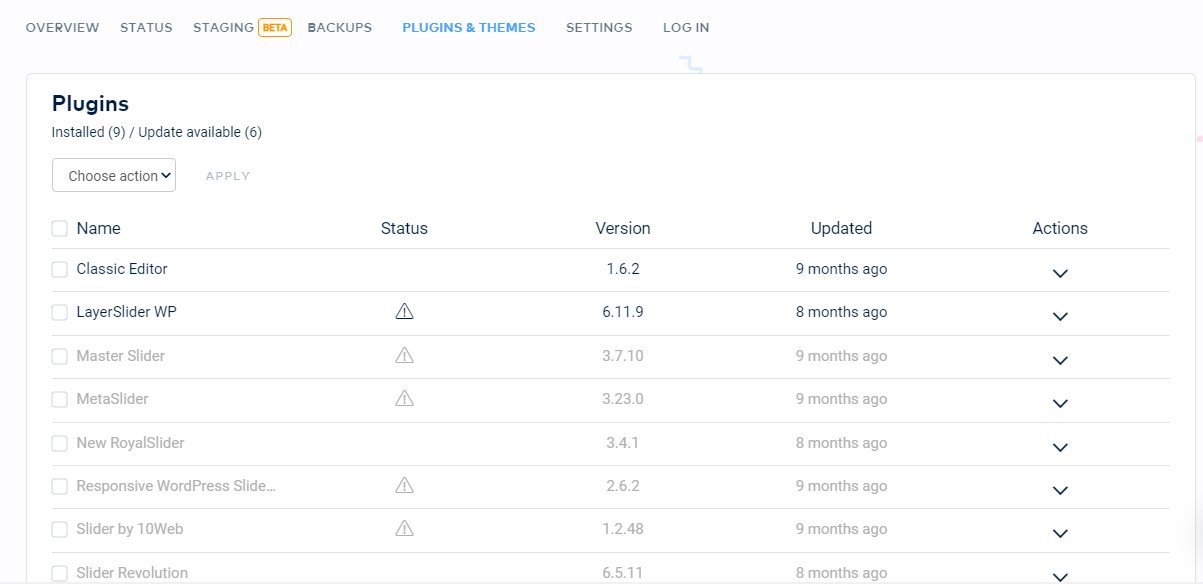
If you do not have access to your WordPress backend on other hosters, you can connect via S/FTP and search for the relevant theme or plugin in the ../wp-content/themes or ../wp-content/plugins folder and rename the folder. This will automatically deactivate the corresponding element.
If you are not sure which plugin or theme is causing the problem, first switch to a standard theme such as Twenty Twenty-Two.
If this resolves the issue, it is most likely caused by the theme or an interaction between the theme and plugins. In that case, contact the theme’s development team. If not, deactivate all plugins and reactivate them one by one until you identify the plugin causing the problem. Then try reinstalling that plugin. If that doesn’t help either, contact the plugin’s development team.
WordPress Error #4: Error Establishing a Database Connection

The “Error Establishing a Database Connection” is one of the most critical WordPress errors there is. It means that your server cannot connect to the database, and this has immediate consequences: Your website displays a blank page with only this error message, and you usually can’t access the admin panel either.
The reason this error is so serious is that the WordPress database contains almost everything your website needs to run. Page content, posts, login credentials, and plugin and theme settings are all stored there. Only files such as images, plugin and theme files, and WordPress core files are located in the file system and are accessible via S/FTP.
Cause 1: Incorrect data in the WP Config
In most cases, it is simply incorrect information about the database connection that causes the error. This error often occurs after a move to a new server or hoster and is quite easy to rectify:
Solution: For all system-relevant errors (and this one in particular!), you should first create a backup of your website. With Raidboxes, you simply create a manual backup in your Box Backups. With other hosters, you may have to back up the entire website or at least the files that you change locally beforehand.
Now obtain the information required to establish a connection to the database. These are
- Database name (DB_NAME)
- MySQL Username (DB_USER)
- MySQL password (DB_PASSWORD)
- MySQL Hostname (DB_HOST) [This is the server]
- Table Prefix ($table_prefix) [usually ‘wp_’]
You can usually find this information in your hoster’s dashboard. In most cases, not all information is required. With Raidboxes, for example, you only need the table prefix, as the remaining entries are read and controlled automatically.
If you have the necessary information, download the wp-config.php from the main directory of your WordPress installation via S/FTP, make a local copy of it as a backup and edit the original with an editor such as Notepad++.
There you will find the following lines (note: $table_prefix will not be included in all cases):

Compare this information with the information you have just obtained. Save these changes and upload the file back to the main directory of your server (overwrite the original file, as you have a local backup). If the information is now correct, you should be able to use your website normally again.
Cause 2: Faulty database
An error may have crept into your database.
Solution: WordPress may be able to repair the database automatically. To do this, go to yourdomain.com/wp-admin. If you see here that your database can be repaired, add “/* That’s all, stop editing! Happy blogging. */” to the WP Config:
define(‘WP_ALLOW_REPAIR’,true);Then go to yourwebsite.com/wp-admin/maint/repair.php.
If this solves your problems, don’t forget to remove the line from wp-config.php.
Cause 3: Problems with your hoster
The SQL server may be down and unavailable. A maximum database size may also have been reached. Or the resources of your web host are exhausted.
Unfortunately, this often happens with shared hosting. This is because you share a server with many other websites. If a website uses a lot of resources there, this is naturally at the expense of your website. That’s why we always recommend high-performance hosting specially customised for WordPress to prevent such overloads.
Solution: Contact your web host or check their status page (if available) to see if there are currently any problems with the server. If necessary, have the hoster display the CPU load and switch to another server if the load is too high. If this does not bring any improvement, you should consider switching to another hoster.
WordPress Error #5: HTTP 500 Internal Server Error
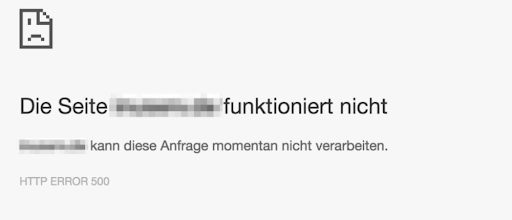
The HTTP 500 Internal Server Error is one of the most common WordPress errors, and it’s particularly frustrating because it remains deliberately vague. The server simply reports that something went wrong, but doesn’t specify what exactly. For visitors to your website, this means a blank page or a generic error message. For you as the site owner, it means: troubleshooting.
Cause 1: Corrupted .htaccess File
A corrupted .htaccess file is one of the most common triggers for the 500 error. This can happen, for example, after a plugin update that writes entries to this file, or after manual changes.
Solution: Connect to your server via S/FTP and navigate to the root directory of your WordPress installation. Rename the .htaccess file to .htaccess_backup, then visit your website. If it loads again, the .htaccess file was the cause. Then go to Settings > Permalinks in the backend and click “Save Changes” to generate a new, clean .htaccess file.
Cause 2: Faulty plugin or theme
A faulty plugin or theme can also trigger a 500 error, similar to the White Screen of Death. This happens particularly often after updates that didn’t complete successfully.
Solution: Deactivate all plugins by renaming the /wp-content/plugins/ folder to /wp-content/plugins_backup/ via S/FTP. Once the website reloads, reactivate the plugins one by one,
Cause 3: PHP memory limit exhausted
A PHP memory limit that is set too low can also result in a 500 error. The error message in the error.log will typically read:
“Fatal error: Allowed memory size of XXXX bytes exhausted”
Solution: Add the following line to wp-config.php:
define(‘WP_MEMORY_LIMIT’, ‘256M’);
Only increase the value if your hosting package actually provides the corresponding amount of RAM.
Tip: Enable WP Debug Mode to see the exact error in the log. Often, the error.log will tell you exactly where the problem lies in just a few seconds, saving you time-consuming troubleshooting.
WordPress Error #6: Critical Error (“A critical error has occurred on this site”)
Since WordPress 5.2, there has been a dedicated protection mechanism for serious PHP errors: the so-called Recovery Mode. Instead of a white screen, the following message now appears:

What may seem alarming at first glance is actually an improvement over the classic White Screen of Death: WordPress has detected the fatal error and has already notified you via email at the admin address on file. In this email, you’ll find a special link that allows you to activate Recovery Mode and access the backend, even if it’s no longer accessible through the usual channels.
Cause: PHP Fatal Error caused by a plugin, theme, or outdated PHP version
Typical triggers for this critical error in WordPress include incompatible plugins or themes after an update, a PHP version conflict, or a corrupted file in the WordPress core.
Solution:
- Check your admin email for the notification from WordPress and click the link provided to activate Recovery Mode.
- In Recovery Mode, you’ll see which plugin or theme triggered the error. Deactivate it immediately.
- If you don’t receive an email, first check your spam folder and verify that the admin email address listed under Settings > General is correct. Also note: The email is only sent if your server can send emails via the PHP mail() function. This is restricted in some hosting configurations. In this case, skip Recovery Mode and go directly to Step 4.
- Alternatively, connect via S/FTP and deactivate plugins and themes by renaming their respective folders, as described in the “White Screen of Death” section.
- Enable WP Debug Mode to pinpoint the exact error, and update the affected plugin or theme to a compatible version.
Important: This critical error is a clear sign that an element of your WordPress installation is not compatible with the current environment. Especially for agencies and freelancers who manage multiple WordPress websites simultaneously, such an error can quickly cause stress for clients. Therefore, always test updates in a staging environment first before deploying them to the live website.
WordPress Error #7: ERR_TOO_MANY_REDIRECTS
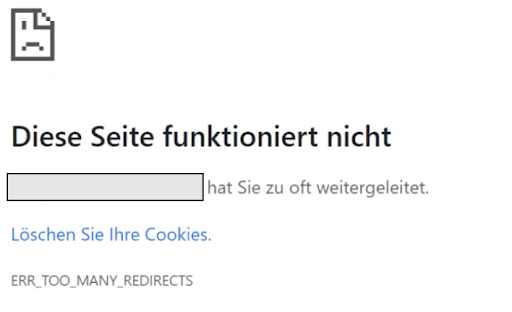
The ERR_TOO_MANY_REDIRECTS error, also known as a redirect loop, means that your browser is stuck in an endless redirect loop. Page A redirects to Page B, Page B redirects back to Page A, and so on, until the browser stops and displays the error message. The result: Your website is inaccessible both on the front end and the back end.
This WordPress error occurs particularly frequently after an SSL migration, a domain move, or after changes to the .htaccess file or the WordPress core settings.
Ursache 1: Incorrect WordPress URL settings
If the “WordPress Address” and the “Site Address” under Settings > General do not match—for example, one is set to http:// and the other to https://—a redirect loop will occur.
Solution: If you still have access to the backend, correct both URLs under Settings > General. Both must be identical—either consistently with https:// or without it—and the domain must match exactly, including or excluding www. If you no longer have backend access, you can set the values directly in the wp-config.php file:
define(‘WP_HOME’, ‘https://deinedomain.de’);
define(‘WP_SITEURL’, ‘https://deinedomain.de’);
Cause 2: Incorrect redirects in the .htaccess file
Conflicting redirect rules in the .htaccess file can also trigger an infinite redirect loop, for example if a plugin leaves behind entries that weren’t removed after it was deactivated.
Solution: Rename the .htaccess file to .htaccess_backup via S/FTP and check if the error is resolved. Then generate a new .htaccess file via Settings > Permalinks in the backend.
Cause 3: Conflicts caused by SSL or caching plugins
After switching to SSL, it’s possible that both the .htaccess file and an SSL or caching plugin are performing redirects simultaneously, thereby blocking each other.
Solution: Temporarily disable all redirect and caching plugins by renaming the plugin folder via S/FTP. Also, completely clear your browser cache before each test, as otherwise you may see a cached version of the redirect loop even though the actual problem has already been fixed.
WordPress Error #8: 403 Forbidden

The 403 Forbidden error means that your server has received the request but is denying access. Unlike a 404 error, where a page simply cannot be found, the page exists but cannot be accessed. For visitors, this is a dead end; for you as the site operator, it’s an indication that something is wrong with the access permissions or server configuration.
Cause 1: Incorrect file or folder permissions
WordPress requires specific permissions for files and folders so that the server can read and execute them correctly. If these permissions are set incorrectly—for example, after a manual S/FTP upload or due to a faulty plugin—the server will deny access.
Solution: The recommended permissions for WordPress are 755 for folders and 644 for files. For the wp-config.php file, the official WordPress Codex recommends 400 or 440, as this file contains your database credentials and should be protected as restrictively as possible. You can adjust the permissions directly via your S/FTP client by right-clicking on the relevant file or folder and selecting “File Attributes” or “Permissions.” Note: Some plugins require write access to certain files. If functionality issues arise after adjusting the permissions, it may be necessary to set the permissions slightly more loosely, for example 640 instead of 400.
Cause 2: Corrupted .htaccess file
Here, too, a corrupted .htaccess file can be the cause, especially if incorrect entries are blocking access to certain parts of the website.
Solution: Rename the .htaccess file to .htaccess_backup via S/FTP. Then visit your website and go to Settings > Permalinks in the backend to generate a new .htaccess file. If the 403 error no longer occurs, the issue was caused by the old file.
Cause 3: A security plugin or server rule is blocking access
Some security plugins or server-side firewall rules block certain IP addresses or requests that they classify as suspicious. This can result in you or certain users no longer being able to access your website or the backend.
Solution: Check the settings of your security plugin and see if your own IP address has been blocked. With Raidboxes, you can manage IP blocks directly via the Box settings and lift them if necessary. Alternatively, you can temporarily disable the security plugin via S/FTP by renaming the plugin folder and check if this resolves the error.
5 Tips for avoiding critical WordPress error messages
The best troubleshooting is the kind you don’t need to do in the first place. With these five steps, you can significantly reduce the risk of critical WordPress errors.
Tip 1: Keep WordPress, plugins, and themes up to date
Outdated software is one of the most common causes of WordPress errors. Perform WordPress updates regularly and check beforehand whether the new version is compatible with your other plugins and your theme. This ensures that nothing unexpected happens.
At Raidboxes, minor security and maintenance updates are automatically installed within 48 hours; for major updates, you’ll receive a notification in advance and can decide for yourself when the right time is.
Tip 2: Create regular backups
An up-to-date backup is your most important safety net. Set up automatic backups and make sure you can quickly restore your site to a previous state in case of an emergency. Raidboxes already takes care of this, as automatic backups are included in the package by default.
Tip 3: Always test changes in a staging environment first
You should never test new plugins, theme updates, or code changes directly on your live website. Use a staging environment to safely test changes before they go live. With Raidboxes, you get a full-featured staging environment included, complete with easy deployment to your live website
Tip 4: Choose high-quality plugins and themes
Not every plugin or theme is well-maintained. Make sure the tools you use are updated regularly, have good reviews, and are compatible with your current version of WordPress. In this case, less is often more.
Tip 5: Monitor your website regularly
Don’t wait for users to point out errors to you. Set up a monitoring tool that notifies you immediately if your website is down or errors occur. This allows you to respond quickly before a problem has a major impact.
Conclusion: How to stay one step ahead of WordPress errors
WordPress errors can’t always be prevented, but with the right preparation, you can stay one step ahead of them. Regular backups, up-to-date software, and a staging environment are your best safeguards. And if something does go wrong, you now know how to respond quickly and effectively.
What WordPress problem have you had to deal with the most so far? Feel free to leave your feedback in the comments.
Frequently asked questions about WordPress error messages
What is a WordPress error?
A WordPress error is a message indicating that something on your website isn’t working as expected. Causes range from PHP errors and theme conflicts to database issues or incorrect server configurations.
Why am I getting a WordPress error message?
WordPress error messages are usually caused by incompatible plugins or themes, outdated software, faulty database connections, or server configuration issues. Often, a quick look at the debug log is enough to identify the exact source of the error.
What can I do if WordPress stops working?
First, check if you still have access to the admin area. Enable WP Debug Mode to narrow down the cause. It often helps to deactivate recently installed plugins or themes or restore a backup.
How can I repair the WordPress database?
WordPress offers a built-in repair function. To use it, add define(‘WP_ALLOW_REPAIR’, true) to your wp-config.php file and then go to yourwebsite.com/wp-admin/maint/repair.php. Remove the entry after the repair is complete.
Why aren’t images displaying on my WordPress website?
There could be several reasons for this: incorrect file permissions, a faulty plugin, mixed content errors caused by an SSL migration, or an accidentally deleted uploads folder. Checking your browser’s developer console can help narrow down the issue.
Subscribe to the Raidboxes newsletter!
We share the latest WordPress insights, business tips, and more with you once a month.


Leave a Reply